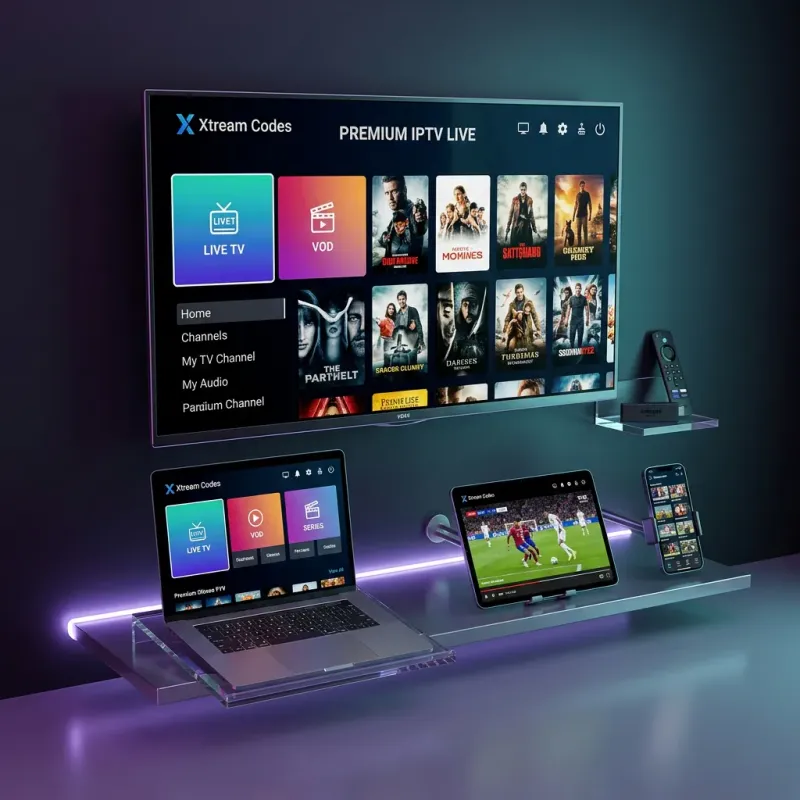
Most "xtream server" searches are the same problem in different words: you have (or want) credentials, the player is open, and the login screen is staring back at you. Host. Username. Password. Maybe a port. Maybe an "authorization failed" banner. This guide is that screen, end to end.
I will cover how a real xtream server login works, how to get a legitimate free trial account instead of a dead public list, the exact click path in popular players, and the fixes that actually clear the common errors. If you want product context first, read Xtream Codes IPTV explained. If you just want streams working tonight, stay here.
What "xtream server" means on a login form
Players label the first field a few different ways: Server URL, Host, Portal, DNS, or Xtream Server. They all mean the panel endpoint your provider gave you. It is not your home Wi-Fi router. It is not a random DNS like 8.8.8.8. It is a host string that looks like one of these:
http://line.example.com:8080https://portal.example.comhttp://123.45.67.89:25461
Username and password are stream credentials, not the password you used to create a website account. Treat them like API keys. Do not post them in Discord "free account" channels. Once they leak, providers kill them.
Some older panels also accept a full M3U URL. That is a different path. For this guide we use the structured Xtream Codes API login only. It is more stable and matches what most modern apps expect.
Skip random "free popular xtream account" lists
Search results for free popular xtream account are a graveyard. Public credentials get burned within hours. They also come with zero support, stolen panels, and malware sideload links. If your goal is "try before I pay," the clean path is a provider trial that issues private credentials to your email.
On this service that is the free 24-hour trial. You fill the form, we send a private server URL + username + password, and you get a full day on the real channel list. No credit card. When the day ends, the trial dies and a paid plan continues only if you choose one on pricing.
That is the only "free account" path I recommend. Everything else is noise.
Before you log in: checklist
- Credentials email open on your phone (easy to copy from)
- Player app installed on the device you will watch on
- Stable network (5 GHz Wi-Fi or Ethernet for Firestick)
- 10 quiet minutes (first EPG load is slow)
Device setup pages live under App & Setup. Firestick users should skim the Firestick install guide if Developer Options are still off.
Xtream server login steps (any player)
The labels change slightly by app. The order does not.
1. Add a new playlist / user
Open the player. Look for Add User, Add Playlist, Load Playlist, or + . Avoid "Load from file" unless you intentionally have an M3U file.
2. Choose Xtream Codes API (not M3U URL)
This is the step people skip. If you paste a server host into an M3U field, login fails in confusing ways. Explicitly pick Xtream Codes, XC API, or Login with Xtream Codes.
3. Paste the three fields
- Name: anything you will recognize later ("Home Firestick")
- Host / Server URL: full string from the email, including http/https and port if present
- Username
- Password
No spaces before or after. If your email client wraps the host onto two lines, paste into a notes app first and join it back into one line.
4. Save and wait
First sync can take under a minute on a good line, or a few minutes on slow Wi-Fi. Live TV categories appear first. VOD and series tabs fill after. Open a news channel first (lighter streams) before you jump into a 4K PPV.
5. Pin or favorite what you actually watch
A 24,000-channel list is useless until you favorite 20. Pin your sports nets, local news, and one kids pack if you need it. Future you will thank present you.
Player-specific notes
IPTV Smarters Pro (Firestick / Android)
Login → Xtream Codes API → fill fields → Add User. If the app asks for a playlist name, use your device name. After login, go to Settings and set a sensible stream format if you see black screens (HLS / MPEG-TS toggles vary by build).
TiviMate
Playlists → Add playlist → Xtream Codes. TiviMate is stronger on EPG and multi-view once you are past login. It is worth the small paid upgrade if this is your daily driver on Android TV.
XCIPTV and similar XC-branded apps
These were built around the same three fields. The UI is denser. Same rule: API login, not M3U paste.
iOS players
App Store options change. GSE-style players still accept host/user/pass. If an app only offers M3U, it is the wrong tool for this guide.
Authorization failed and other login errors
When xtream server login fails, work the list top down. Do not reinstall the whole OS first.
- Authorization failed / incorrect details: retype password manually once. Trailing spaces from email copy are the usual villain.
- Could not connect to server: host typo, wrong port, or your network blocking the panel port. Try phone hotspot to test if the home ISP is the blocker.
- Empty categories after "success": you logged into a dead or expired line. Confirm trial status in email timestamps.
- Works on phone, fails on Firestick: old cached profile. Delete the user in the Firestick app and add it again. Also check that you did not hit the connection limit.
- Streams start then freeze: that is no longer a login problem. See Xtream Codes troubleshooting for buffering and anti-freeze checks.
Still stuck after a clean re-add? Email help@catchontv1.email or use contact with: device model, player name, exact error text, and the time you tried. Do not send your password in public tickets if the form is shared; support will rotate credentials if needed.
Free trial account workflow (recommended)
- Submit the 24-hour trial form with a real email you can open on your phone
- Install your player while you wait
- When credentials arrive, log in using the steps above
- Test: 1 live sports or news channel, 1 movie start, 1 series episode, and a second device if your trial allows it
- Note any weak Wi-Fi corners of the house now, not after you pay
- If it holds, pick a plan on pricing before the trial clock runs out so support can migrate you cleanly
That workflow beats hunting a free popular xtream account on forums every single time. Private line, real support, known expiry.
Security basics people skip
- Do not reuse your stream password on email or banking
- Do not screenshot credentials into public group chats
- Remove old trial profiles from players so you do not keep retrying dead logins
- If a "support" stranger DMs you asking for your password, ignore them. Real support already has account context from your order email.
FAQ
Is the server URL the same as a website URL?
Sometimes it looks similar, sometimes it is a pure IP:port. Always use the exact string from your provider email. Guessing the host is how people burn an hour on "could not connect."
Can one xtream server login run on two TVs?
Only if your plan includes two (or more) connections. Each active stream counts. Idle apps in the background can still hold a slot on some players, so force-close when you switch rooms.
Do I need a VPN for login to work?
Login itself rarely needs a VPN. Streaming performance might. If login works on mobile data but not home Wi-Fi, your ISP may be filtering the panel port. A VPN can confirm that diagnosis quickly.
Where do I learn what Xtream Codes IPTV includes after login?
Channel scope and product details are on the Xtream Codes IPTV guide and the live channels list. This page stays focused on getting past the login form.
Quick recap
Xtream server login is three fields in an API-aware player. Get private credentials (trial or paid), choose Xtream Codes API, paste carefully, wait for the first sync, then favorite what you watch. Skip public free account dumps. If authorization fails, fix copy-paste and login method before you reinstall anything.
Ready to try it on a clean line? Start here: free 24-hour trial. Prefer the product overview first? Back to the homepage or the full xtream codes iptv explainer.